Check Your Connection Against the vpsandserver.com Server
Your internet plan promises a number, usually something like 100, 500 or 1,000 Mbps, but the speed you actually get depends on your router, your Wi-Fi, other devices on the network, your ISP's evening load and the route to whatever you are connecting to. This speed test measures what your connection delivers right now, on a real path to a real server.
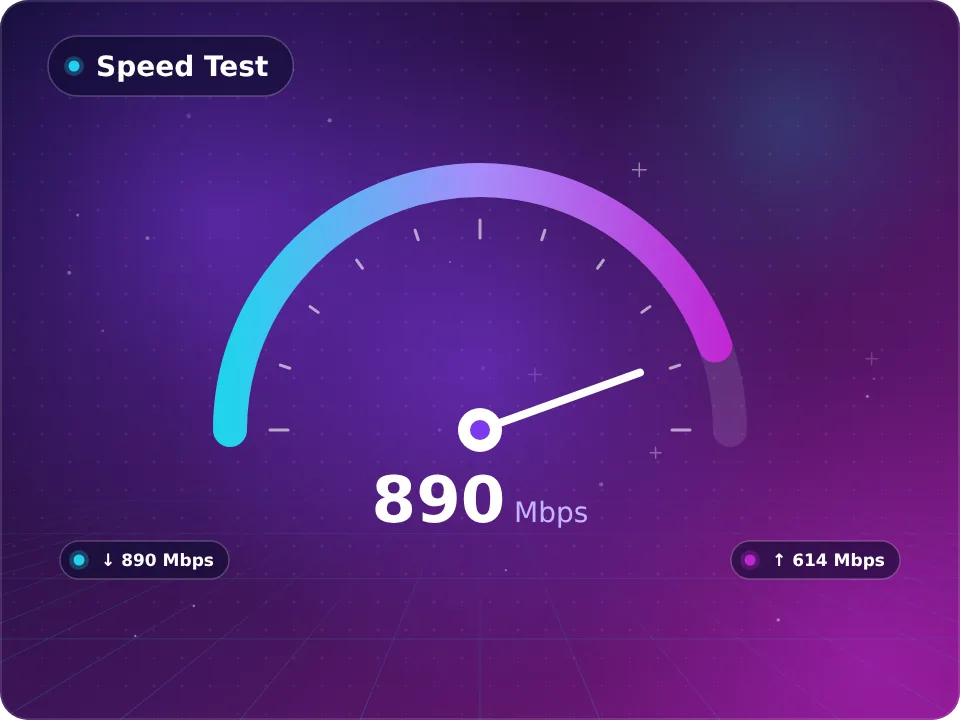
The test runs in four phases. It first measures ping, the round-trip time for small requests, and jitter, how much that time varies. It then downloads test data from the vpsandserver.com server for several seconds to calculate download throughput, and finally sends data back to measure upload throughput.
Because all four measurements are taken between your device and our server, the results describe that specific path. They are a strong indicator of your general line quality, and they are directly relevant if you manage servers with us, since remote desktop, SSH, file uploads and backups travel a similar route.
If you want to know how fast a particular data center responds from your users' locations, rather than from your own connection, our online ping test probes any IP from check nodes around the world. Together, the two tools separate problems on your side from problems on the network or server side.
What This Browser Speed Test Measures
The tool reports four values, each answering a different question about your connection. Ping, in milliseconds, tells you how quickly a small request gets an answer. Jitter, also in milliseconds, tells you how consistent those answers are. Download speed, in megabits per second, tells you how fast data arrives. Upload speed tells you how fast you can send it.
All measurements run over standard web connections from your browser to the vpsandserver.com test server. Nothing is installed on your device, and the test uses the same protocols as normal browsing, so the results reflect conditions that real applications experience rather than an idealized lab path.
Download and upload are measured by moving data continuously for a short period, often over several parallel streams, then dividing the amount transferred by the time it took. Parallel streams help fill fast links that a single connection cannot saturate on its own, which is how browsers and download managers behave in practice.
Keep in mind what the test does not measure. It does not test your ISP's connection to every website, it does not measure a server's processing speed, and a single run is a snapshot of one moment. For a reliable picture, run it several times at different hours and look at the pattern.
Units matter too. Speeds are shown in megabits per second, while file sizes are usually in megabytes. Divide Mbps by eight to estimate megabytes per second: a 200 Mbps result moves roughly 25 MB of data per second under ideal conditions.
Download and Upload Mbps: Interpreting Your Throughput
Download speed governs how quickly web pages, video streams, game updates and file downloads arrive. For a household, the question is less whether one task is fast and more whether several tasks can run at once: a 4K stream, a video call and a game download together need far more than any one of them alone.
Upload speed is often overlooked until it becomes the bottleneck. Video calls, live streaming, cloud backups, pushing code, sending large files and uploading website changes to a server all depend on it. Many cable and DSL plans are asymmetric, with upload a fraction of download, while fiber plans are more often symmetric.
Compare the result to your subscription, but expect some overhead. Protocol headers, encryption and Wi-Fi framing consume part of the raw line rate, so a wired connection reaching roughly 85 to 95 percent of the advertised speed is performing normally. Wireless results are commonly lower and vary from room to room.
A very low upload result alongside a healthy download often points to the plan itself, an upstream-heavy device on the network such as a backup client, or an older router. A low download with normal upload more often points to Wi-Fi conditions or evening congestion on the ISP side.
Finally, the result reflects the path to our server. A different server in another country can produce higher or lower figures because of routing and distance, which is normal and is exactly why location matters when you choose hosting.
Ping and Jitter Values in Your Speed Result
Ping in a speed test is the round-trip time for small messages between your browser and the test server. It is affected by the physical distance to our server, the number of network hops, your local network and any queuing along the way. Lower is better, and stable is better still.
Jitter is the variation between successive ping measurements. If five samples come back at 30, 31, 29, 30 and 32 ms, jitter is low and the connection feels steady. If they come back at 30, 75, 28, 110 and 35 ms, the average may look acceptable, but voice calls will stutter and online games will feel inconsistent.
High jitter almost always has a local or near-local cause. Wi-Fi contention, a router struggling with many devices, a large upload saturating the line, or a congested ISP segment are the usual suspects. A wired connection and a quiet network typically reduce it dramatically.
A useful trick is to watch ping during the download and upload phases if the tool displays it. If latency jumps sharply while data is flowing, your router or modem has oversized buffers, a problem known as bufferbloat. Routers with smart queue management features can largely fix it.
Ping here measures your path to a single server. To understand latency from your users to a server in another country, use the multi-node ping test against that location's test IP instead.
Wi-Fi, Devices and Other Factors Behind Slow Speeds
The device running the test is the first variable. Older laptops, phones in power-saving mode and computers with many open tabs or background updates can all limit throughput, especially on gigabit connections where the browser itself becomes the bottleneck.
Wi-Fi is the second. Signal strength drops with distance and through walls and floors, and neighboring networks on the same channel compete for airtime. The 5 GHz and 6 GHz bands are faster but shorter-range than 2.4 GHz. A test taken next to the router can be several times faster than one taken two rooms away.
Your local network is the third. Every device streaming, syncing photos or downloading updates shares the same line. Smart TVs, game consoles and cloud backup clients are frequent hidden consumers.
Then comes the ISP. Cable networks share capacity within a neighborhood, and many providers see evening slowdowns as everyone streams at once. Mobile and fixed wireless connections vary with signal and cell load. A VPN adds encryption overhead and routes traffic through another server, which usually lowers speed and raises ping.
Distance and routing to the test server complete the picture. A connection that reaches its full rated speed to a server in its own city may show lower throughput to a server on another continent, because higher latency makes it harder for each TCP stream to keep the pipe full.
Getting a Clean Measurement Before You Press Start
If you plan to compare results with your ISP's promise, or to send them to support, a little preparation makes the numbers far more meaningful. The aim is to measure the line, not the noise around it.
Use a wired Ethernet connection if you can, directly to the router or modem. If you must use Wi-Fi, stand close to the router with a clear line of sight and use the 5 GHz or 6 GHz band if available.
Pause other activity on the network: streaming, downloads, game updates, cloud sync and backups. On the test device, close heavy browser tabs and stop large downloads. Disconnect any VPN unless you specifically want to test speed through it.
Run the test three times in a row and note the median, then repeat at a different time of day, ideally once in the morning and once during evening peak hours. A single slow result is not proof of a problem; a consistent pattern is.
Record the date, time, connection type and results each time. If you later need to escalate a slow-speed complaint with your ISP or open a ticket with us about access to a server, a short log of repeatable measurements is the most persuasive evidence you can provide.
Speed Test Results Lower Than Your Plan? Next Steps
Start by isolating the device. Run the test on a second computer or phone. If one device is slow and the other is not, update its network drivers, check for background traffic and try another browser.
Next, isolate Wi-Fi. Repeat the test on a cable directly to the router. If wired results are fine and wireless results are poor, the fix is on the wireless side: move the router to a central position, change the channel, use the 5 GHz band, or add a mesh node or access point.
If wired results are still low, restart the modem and router, check that the Ethernet cable and router port support the speeds you pay for, since older cables and some ports top out at 100 Mbps, and make sure the router firmware is up to date.
If the line remains slow, compare with another server. If your ISP's own speed test shows full speed but ours does not, the difference lies in routing between your ISP and our network, which is useful information if you are deciding where to host a server for users on that ISP. If every test is slow, contact your provider with your logged results.
If high ping or jitter, rather than throughput, is the problem, look for bufferbloat by watching latency during the upload phase, and enable quality-of-service or smart queue management on the router if it offers them.
Speed Test Privacy and the Data It Transfers
Running a speed test moves data, so it is fair to ask what that data is and what the test learns. The payload exchanged during the download and upload phases is generated test data. It does not contain or read files from your device.
To run the test, your browser connects to our server, which means the server sees your public IP address, just as every website you visit does. That address, together with timing and throughput figures, is what makes a measurement possible. The tool does not ask for your browser's location permission or access device sensors.
If you want to see what your IP reveals about you, our IP address lookup shows the approximate location, ISP and network that public geolocation databases associate with it. Those details are estimates and are shared with every service you connect to, not only with this page.
Be mindful of data caps. A test on a fast connection can transfer a meaningful amount of data in a few seconds, which can count against limits on mobile plans or metered broadband. On a capped connection, run the test sparingly.
For details on how vpsandserver.com handles information from visitors to our website, including the tools on it, please read our privacy policy.
From Home Bandwidth to Server Bandwidth: Sizing a VPS
Your speed test shows the capacity of one connection. A server faces the opposite problem: many visitors share its single network port. Understanding the difference helps you pick a plan with the right port speed and bandwidth allowance.
Start from your traffic. Multiply the average page or file size by expected visitors per hour, then add headroom for peaks. A brochure website needs little bandwidth, while video hosting, game patch distribution, file mirrors, VPN gateways and proxy services move large volumes and benefit from faster ports and generous or unlimited traffic.
Upload and download swap roles on a server. What your visitors download is your server's upload. A VPN or proxy server pulls data from the internet and sends it on to users, so it uses both directions roughly equally. Check the port speed and traffic policy on the location page before choosing.
Distance still matters. A server near your audience delivers higher effective throughput per user because lower latency lets each connection ramp up faster. If your users are concentrated in Europe, a central location such as Germany VPS hosting keeps both latency and transfer times down; for North American audiences, look at the USA VPS page.
If a project outgrows shared resources, a dedicated server gives you a whole port and machine. Our team can help you estimate needs from your current traffic if you open a ticket.